โ˜ฐ Menu
โ˜ฐ
โœจ

Y8 - SU2.3 - Formulae and Formatting

โฑ๏ธ Do It Now

Create a OneNote Page and copy this into the title:

Lesson 3 - Summer 2 - Cells and Formulae


Copy this into a OneNote Page and complete it

๐Ÿ“ Do It Now

Answer each of the following:

(1) What is a spreadsheet?


(2) What is the difference between a row and a column?


(3) Give two reasons why businesses use spreadsheets.


(4) What advantage does a spreadsheet have over a calculator?


Extension

Why might a school use a spreadsheet to track attendance?


๐ŸŽฏ Learning Objectives

  • LO1: Understand what formulae are
  • LO2: Explain the difference between data and formulae
  • LO3: Create and edit formulae using operators and cell references

๐Ÿงฎ Understanding Formulae

Watch THIS VIDEO if you are working independently

Two Cells, Same Answer?

A B
1 15 15

Both cells display 15. Are they actually the same thing?

Double click on a cell to find out

The difference?

Cell A1 contains a data value (15)

Cell B1 contains a formula (calculation of two values, where the answer will be displayed in the cell)

Formula Bar vs Result

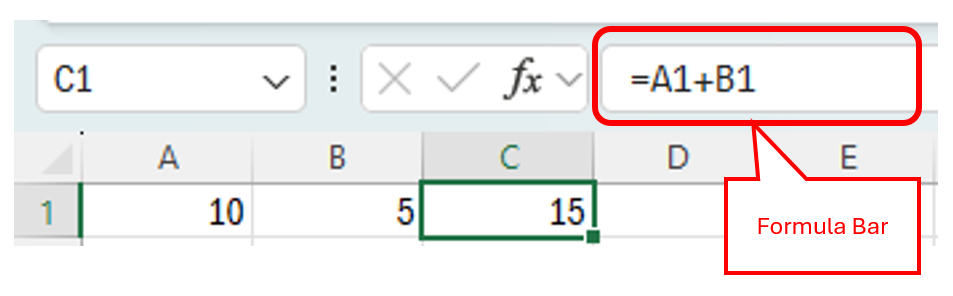
The Formula Bar displays the formula that has been written to a cell.

The result of the formula appears in the cell

=A1+B1
ABC
110515


Click to see what it looks like in excel
Formulae Are Instructions

ABC
110515

=A1+B1
  1. Read A1 โ†’ 10
  2. Read B1 โ†’ 5
  3. Add values
  4. Display answer

Interactive Spreadsheet Simulator

=A1+B1
A B C
1 10 5 15

Select a different Operator to change the calculation

๐Ÿงฎ Accessing and Saving The Lesson Spreadsheet

Your teacher will now show you how to:

  • Download today's spreadsheet
  • Upload this to your computing folder (in OneDrive)
  • Share a link to the spreadsheet on today's OneNote
๐Ÿ’ป Download Spreadsheet


๐ŸŽฅ Alternatively: Watch This Video

๐Ÿ“— Completing The First Tab

Watch THIS VIDEO if you are working independently

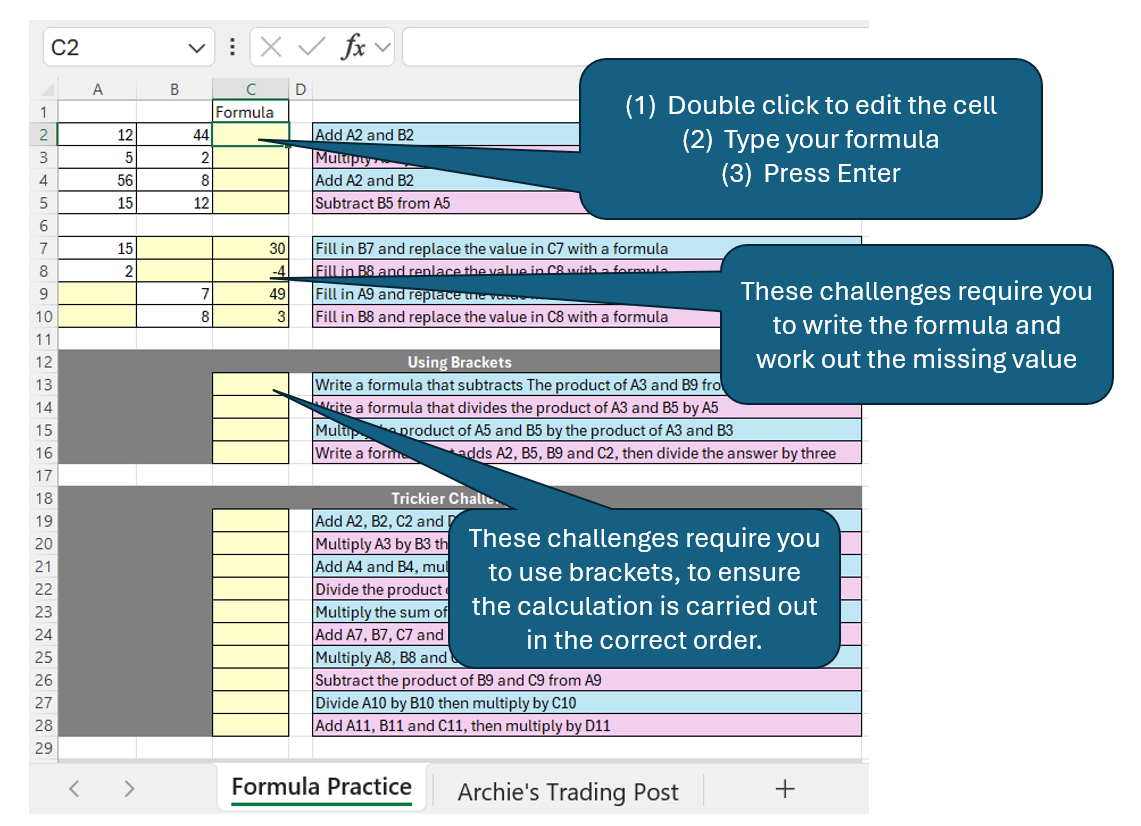
The first tab of the spreadsheet contains a set of values in order for you to complete your own formulae

(1) You must write your formulae in the yellow boxes.

(2) Once you have completed a formula, press the enter key


There is also an extension activity; to write your own formulae - make sure they are as complex as you can make them.

Click For Further Support
๐Ÿ“• Completing The Second Tab

Watch THIS VIDEO if you are working independently

Complete the spreadsheet on the second tab to calculate how many emeralds Archie the wandering trader has earned

Click to see the sheet
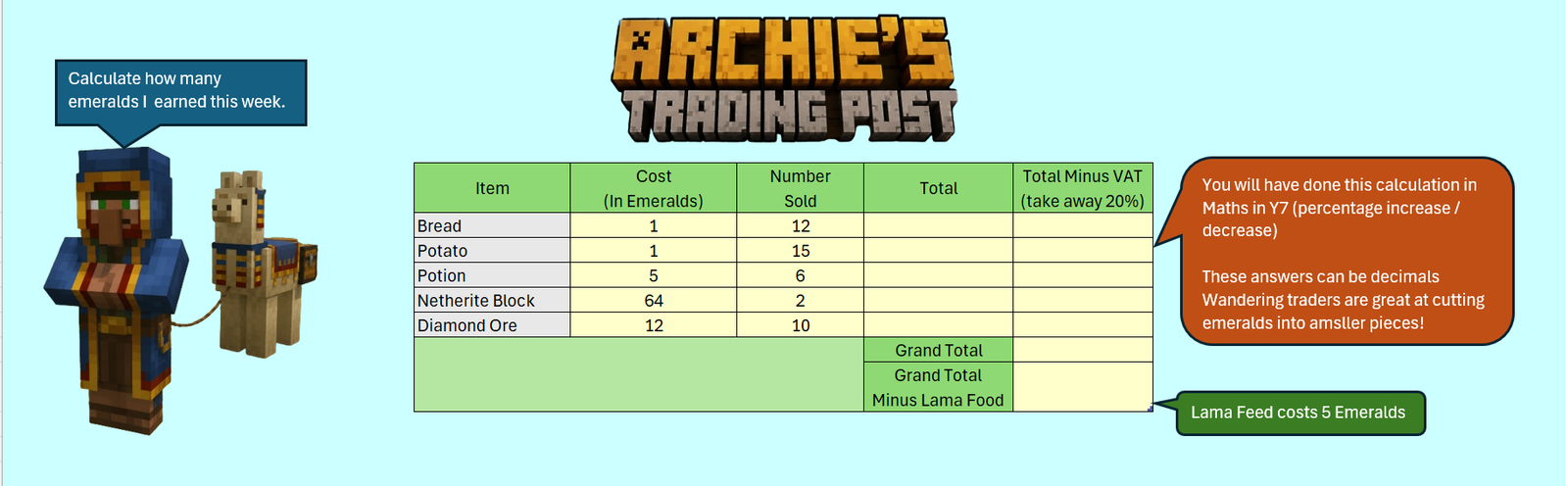
One of the challenges asks you to calculate the total minus VAT.

VAT is a special tax paid by businesses and is currently 20%.

You must use your understanding of percentage increase / decrease (taught to you in Maths) in order to calculate this.

๐Ÿ“ Written Activity

Copy this into your OneNote Page and complete it

๐Ÿ“ Independent Activity - Explaining Formulae

Instruction:

Use annotated screenshots and clear descriptions to explain the following formulae

  1. Simple calculations
  2. Formulae involving brackets
  3. A total
  4. Percentage change


Remember to:

  • Explain what all formulae must begin with
  • Describe how to edit the contents of a cell
  • Outline what must be done when a formula is complete
  • Use the terms cell, value and cell reference

๐Ÿ“ MWB Reflection Task

  • What is the difference between data and a formula?
  • What symbol must every formula start with?
  • Why are spreadsheets more useful than calculators?